
Add booking to your website
If you have your own website, you can add booking for your Gnezdo events. Turn on booking in your dashboard first.
Where to find it in Gnezdo
Dashboard → Events → Website widget
Choose what to show
Open Website widget. Choose Schedule or Button for one event. If you choose a button, select the event. Check the preview and adjust the language, theme or colour if needed.
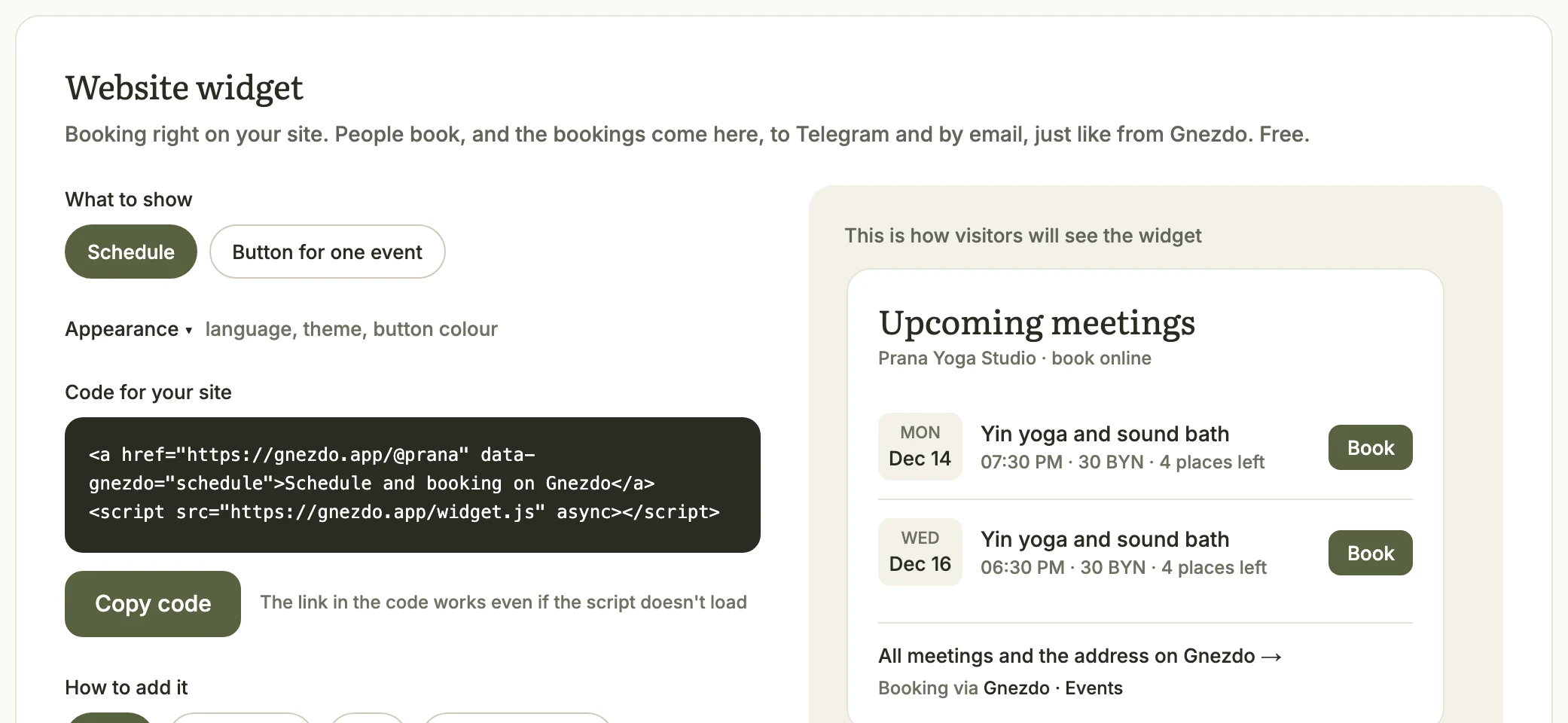
Choose a schedule or a button for a single event in the dashboard. Copy and paste the code
Select Copy code. Under How to add it, choose Tilda, WordPress, Wix or HTML. Paste the code into a block that supports HTML, then publish the changes on your website.
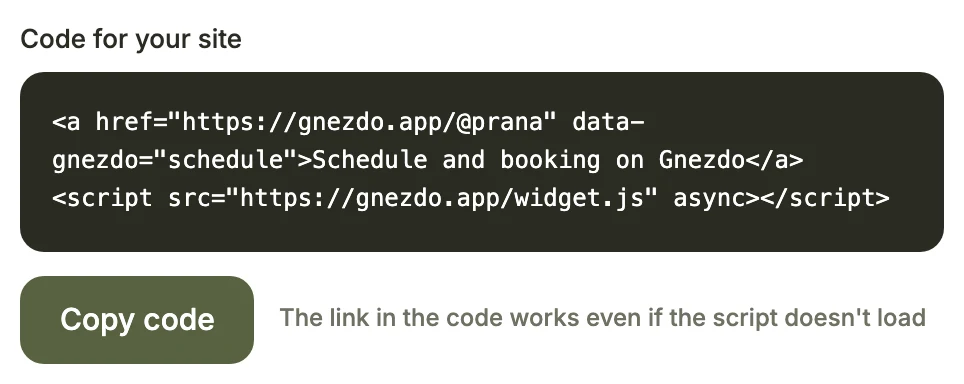
Select Copy code to add the widget to your site. Check booking on the published site
Open the published page as a guest and select the booking button. Check that it opens the right event and the booking form is available. If your site builder strips scripts, the link in the snippet can take guests to Gnezdo to book.


If the widget doesn’t appear
Check that you pasted the code into an HTML block and published your changes. Check that booking is on and the event is published. For installation help, use the option at the bottom of the widget page.
How to turn on event booking