
How to turn on event booking
Turn on booking for your page, set the conditions for the event, and check the button on its public page.
Where to find it in Gnezdo
Dashboard → Events → Booking settings
Turn on booking for your page
Open Events and select Turn on booking. Choose how to confirm bookings and set the capacity. To get notifications in Telegram, connect it in this dialog. Select Turn on booking again. If booking is already on, open Booking settings, make your changes and select Save.
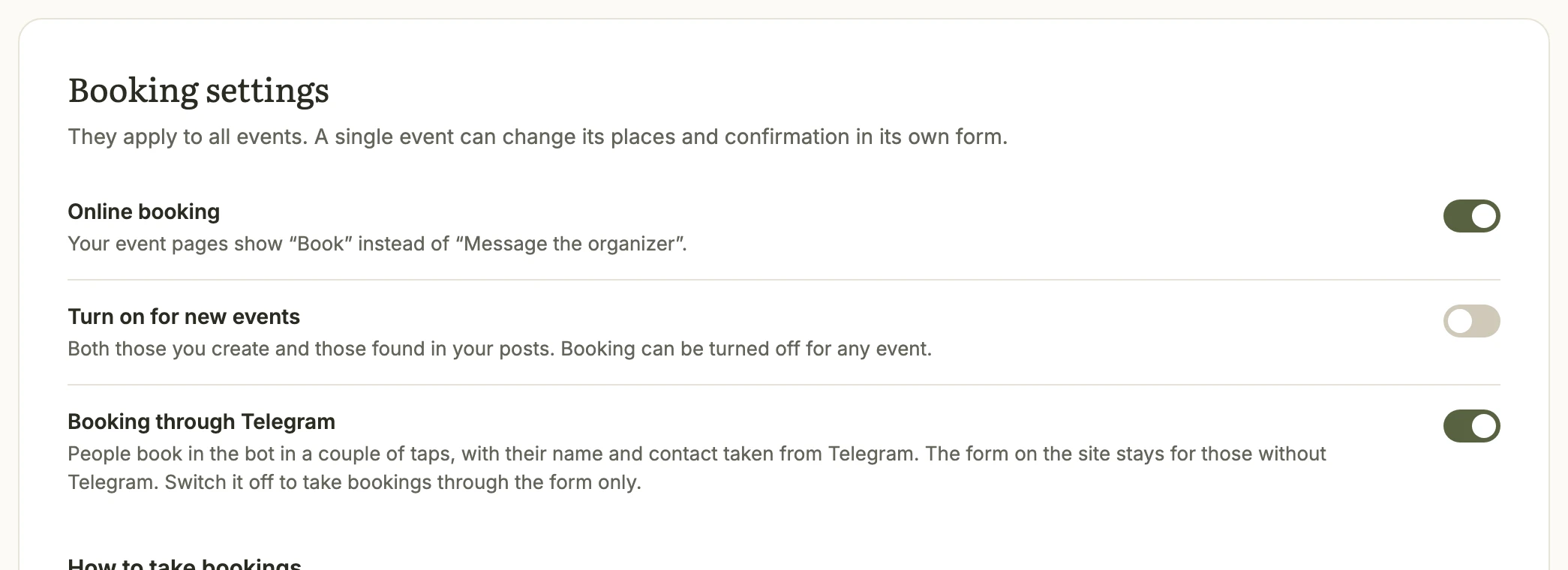
Booking settings are shared across events on this page. Check the individual event
Open the event or series and find Online booking. Check whether it is enabled, how many places are available, how bookings are confirmed and when the form closes. Each date in a series has its own capacity and bookings.
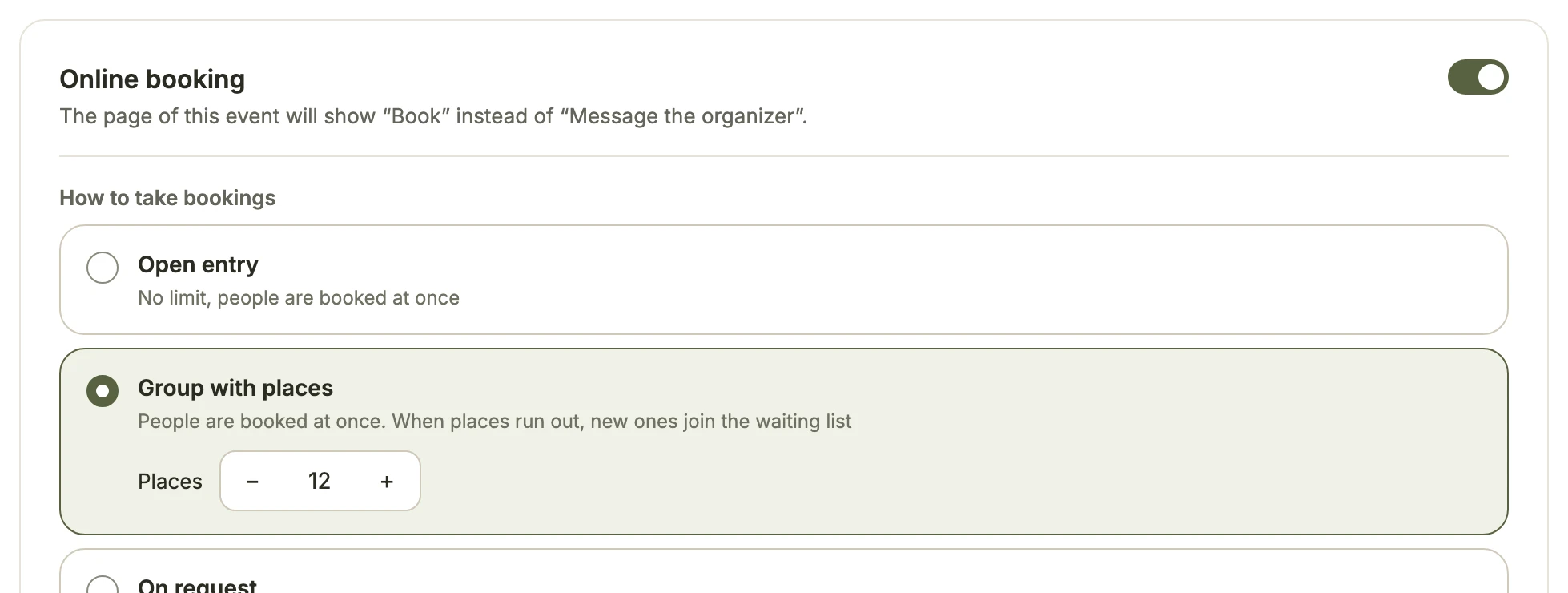
An event can have its own booking settings. Open the bookings list
Open Bookings for the event. With manual confirmation, accept or decline each request. With automatic confirmation, guests reserve their places immediately. If the waitlist is enabled, guests can join it when the event is full. Open the public event page and check the booking button.


If the Book button is missing
Check that booking is enabled on both the page and the event, that the event is published and that the form is still open. If you cannot find the settings, send support the event link.
Manage bookings for a session