
How to change a date or set up repeats
Edit a one-off event on its own page. For a recurring class, you can change the whole schedule or move one session.
Where to find it in Gnezdo
Dashboard → Events → Regular
Video walkthrough
Edit a one-off event
Find the event under Events and select Edit. Change Starts and, if needed, Ends. Select Save and check the new date on the public event page.
Set up a recurring schedule
Turn on Repeat when creating the event. Choose how often it repeats, the days and the time, and check the upcoming dates in the preview. To change an existing schedule, open the class under Regular and edit the rule there.
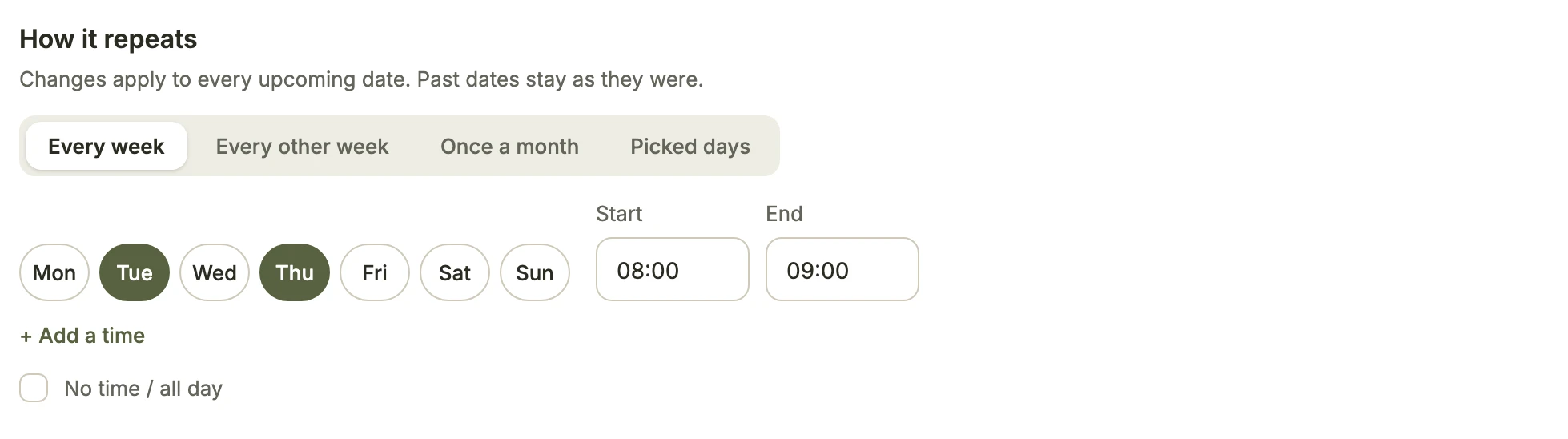
The series page shows how the class repeats. Move one session
In the series dates list, select Move next to the session. Choose a new start date and time, then select Move again. To edit that date again, select Change the new time. The rest of the series keeps its schedule. If the session is cancelled, select Hide next to that date.
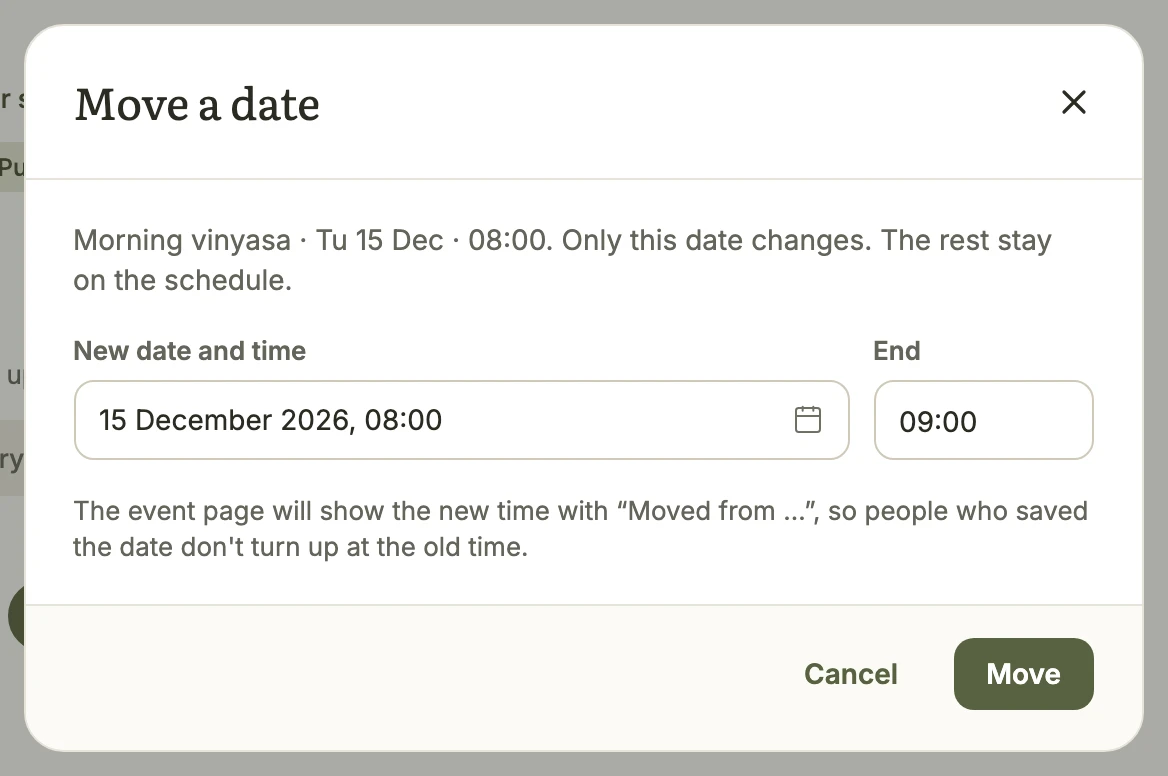
The dialog shows which date you are moving.


If there are no more dates
Open the series and check how far ahead it is scheduled. When prompted to renew it, check the schedule and confirm. If you end the series, check what happened to any upcoming dates.
How to add an event manually