
How to add an event manually
Add a session from your dashboard. If Gnezdo has already picked up the announcement from one of your accounts, open the existing event and edit it.
Where to find it in Gnezdo
Dashboard → Events → Add event
Video walkthrough
Open the dashboard
Sign in to Gnezdo and select the organizer page hosting the session. Open Events and select Add event.
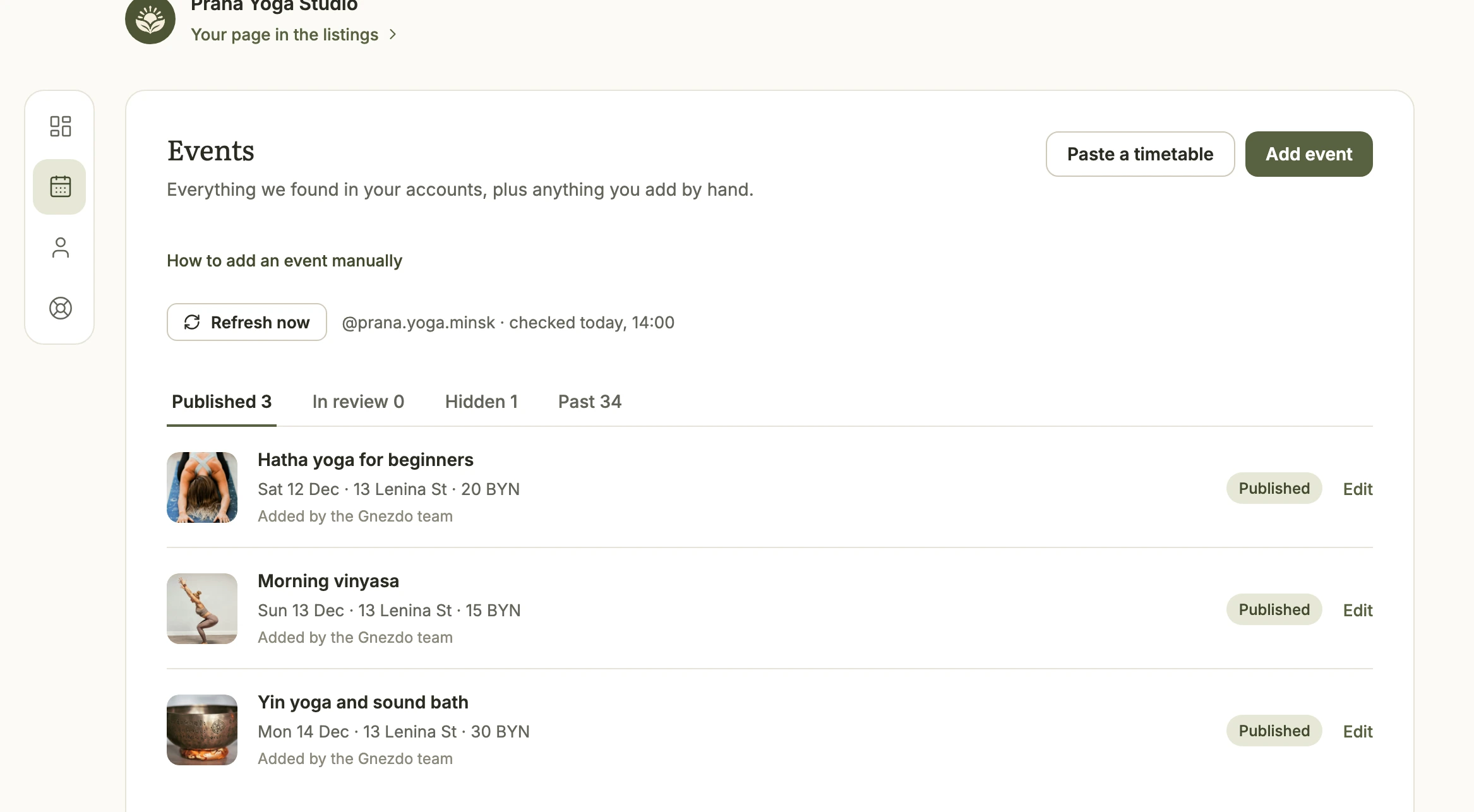
Select Add event in the Events panel. Fill in the event details
Enter a title and a start date and time. Add a description, location, cover photo and any details guests need to decide whether to attend. Turn on Repeat for a recurring schedule.
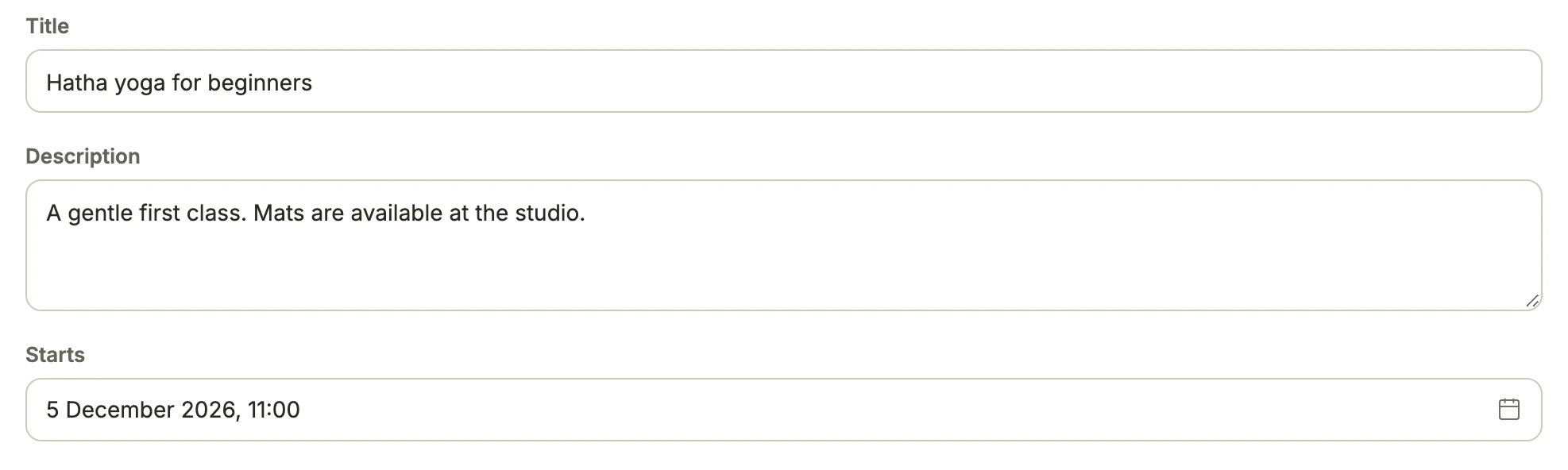
The example shows a title, a description and the start date and time. Save the event
Select Save. If your page can publish without review, the event appears in the listings immediately. Otherwise, it goes live after a moderator approves it.
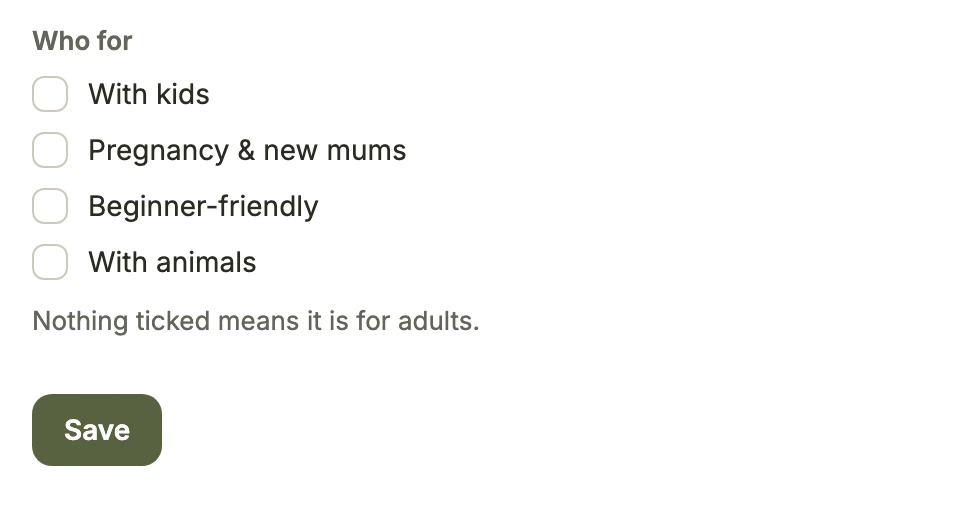
The Save button is at the bottom of the form.


If the event already exists
Find the session in Events and open it to make changes. If a post is on a connected account but the event is missing, select Refresh now when it is available.
How to check announcements from your accounts