Set up your organizer page
Once your request is approved, open your dashboard and add the details guests need before they book.
Where to find it in Gnezdo
Dashboard → Page
Add a description and photos
Under How people see you, check the page name and describe what you organize. Select your avatar to upload or replace it. Under Photos on your page, select Add and choose photos from your posts or upload your own.
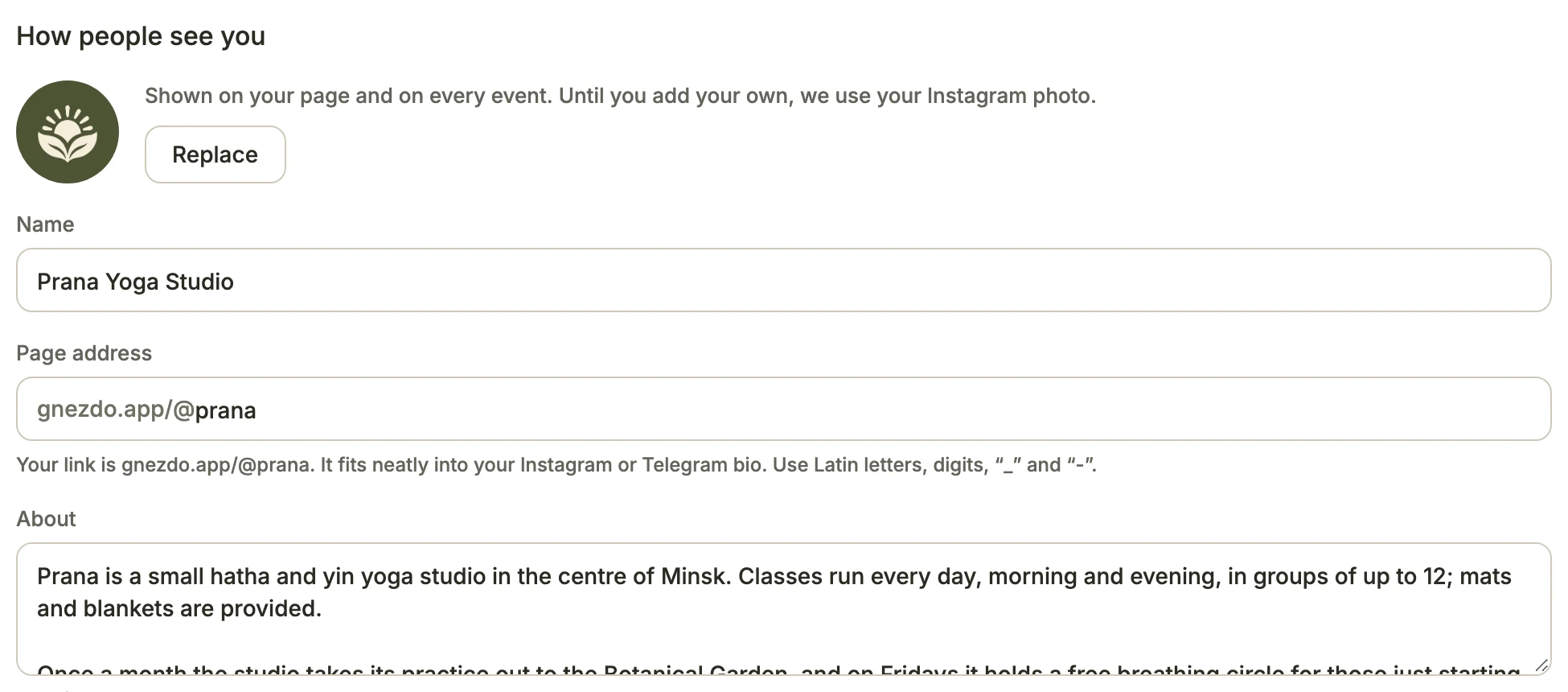
Change your avatar and edit your description under How people see you. Check your contact details and venue
Choose how guests can reach you. If you host at a regular venue, fill in Where you host and check the map pin. Add directions if the entrance is hard to find. Check your page categories too.
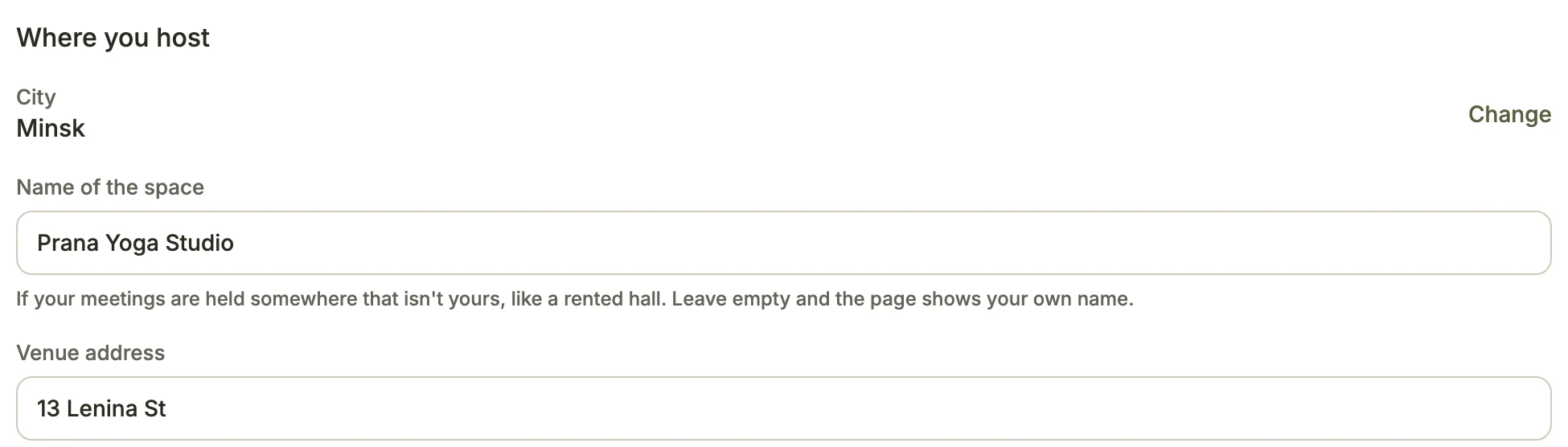
Enter your venue address under Where you host. View your page as a guest
Select Save changes, then View public page. Check the description, contact details and address. If the gallery is on, it displays between three and five photos.


If you can’t edit the page
Check that you’re signed in with the account you used to apply and that you’ve selected the right page. If your request was approved and you still can’t edit it, send support a link to the page.
How to check announcements from your accounts